Features
Everything your cameras can do on a TV.
Crow’s Nest is built for the remote: nearly everything is one or two key presses away. Here’s the full list, grouped by what you’re trying to do.
01
Live view: every camera on one screen
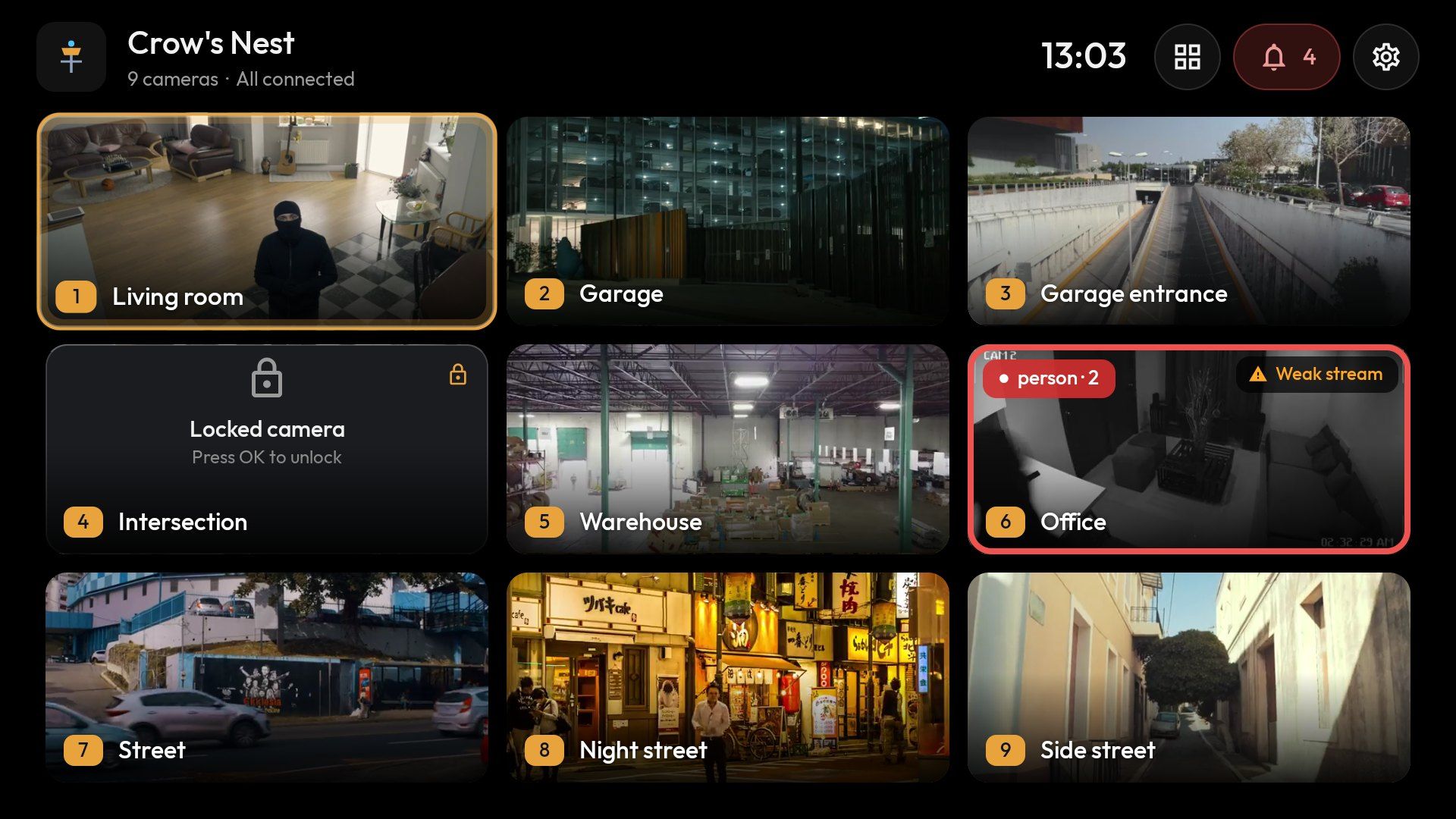
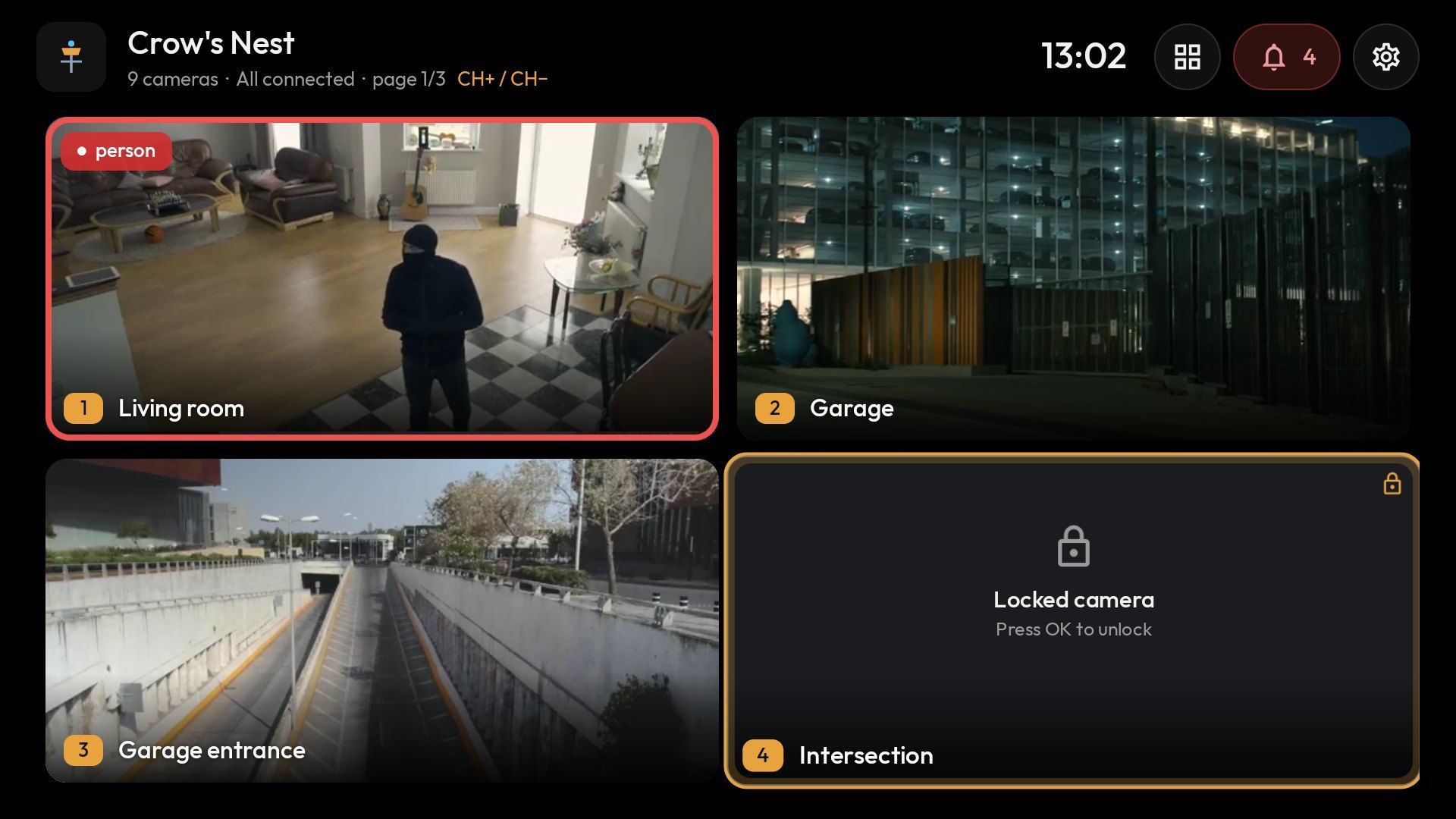
The home screen is a grid of all your cameras. Every tile carries a channel number, so any camera is one key press away.
- A layout that fits itselfThe grid adapts to how many cameras you have, or switch layouts in one click from the home screen: automatic, 2×2, 3×3, 4×4, 1+3, 1+5, 1+7. Layouts larger than 2×2 are Pro.
- One big HD tilePro1+3, 1+5 and 1+7: one camera large and sharp, the rest around it.
- Numbers, just like TVKeys 1–9 and 0 open a camera instantly; two-digit channels work too.
- Pages that turn themselvesCH+ and CH− flip grid pages, or let them cycle on their own. Cycling pauses while you use the remote.
- Motion on the tilesFrigateA red box and a label (person, car…) while Frigate is tracking an object.
- “While you were away”FrigateBack after 20+ minutes? A summary of events per camera and doorbell rings; one click lists just those events. You can also open it any time from quick actions.
- Every camera’s status at a glance“Offline” or “Weak stream” appears in the corner of a tile only when something’s wrong; FPS and details are one press of INFO away.
- A clean home screenJust icons in the header – layout, a bell with the number of unreviewed alerts, and options – with connection status under the title.
- PIN-locked camerasA locked camera shows as a dark card with a padlock and “Press OK to unlock”, so it never looks like a broken camera.
- Quick actionsLong-press OK on a tile: events, recordings by time, “While you were away”, corner view, make it the big tile, favorite, rename, move.
02
Full screen: a picture now, HD a moment later
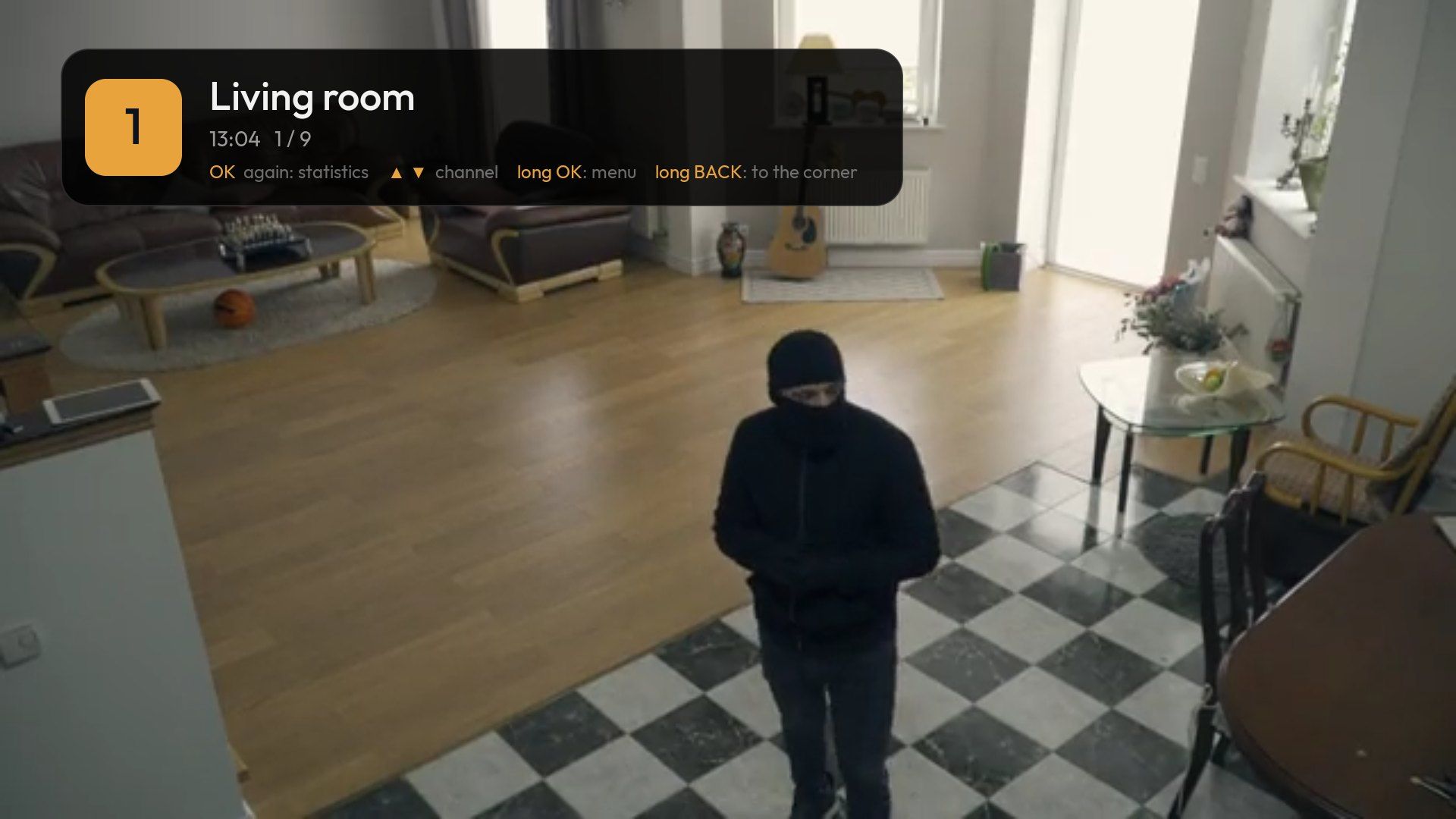
A purpose-built RTSP player (H.265 and H.264, hardware decoding) with no sluggish buffering. You get a picture immediately; sharp HD typically follows within 1–2 s.
- Switch channels in a blinkNeighboring cameras stay pre-connected: typically 0.2–1 s.
- Channel barNumber, name and time, like broadcast TV.
- Smooth playbackAn even frame cadence for about 0.1 s of extra latency.
- Camera audioAAC and G.711; MUTE is remembered.
- Replay the last minuteFrigateOne key, then it goes back to live on its own.
- PTZ from the remoteFrigateArrows pan and tilt, CH+/CH− zoom, 1–9 recall presets.
- PatrolChosen cameras take turns every 5, 10, 30 or 60 s.
- WatchdogAfter a dropped connection or a frozen picture it reconnects, switching to a lighter stream if needed.
- Detailed statsResolution, codec, HW/SW decoder, FPS, bitrate; with Frigate, also detections, CPU, detector and go2rtc clients.
- Back to TV, camera staysProLong-press BACK or press HOME: the camera moves to a corner and you’re back to your program.
03
Camera sources: any IP camera, NVR or Frigate
No dedicated server required. Crow’s Nest talks to your cameras directly; Frigate is one integration among several.
- RTSPAny IP camera or NVR: main and sub stream, Digest and Basic authentication.
- ONVIFAutomatic network discovery, or add by IP address (cameras on another VLAN too); stream URLs are read from the camera.
- Frigate NVRCameras, HD via go2rtc, events, recordings and AI labels.
- Your cameras, your wayFavorites first, custom order, your own names, hidden cameras and PIN-locked cameras.
- Setup wizardScans the network, checks HD and SD streams, measures how many streams your TV can decode and applies the recommended layout in one click.
- Up to 4 cameras freeProUnlimited cameras come with Pro.
04
Events and recordings
With Frigate NVR, your TV becomes the place to review what happened – no phone or laptop needed.
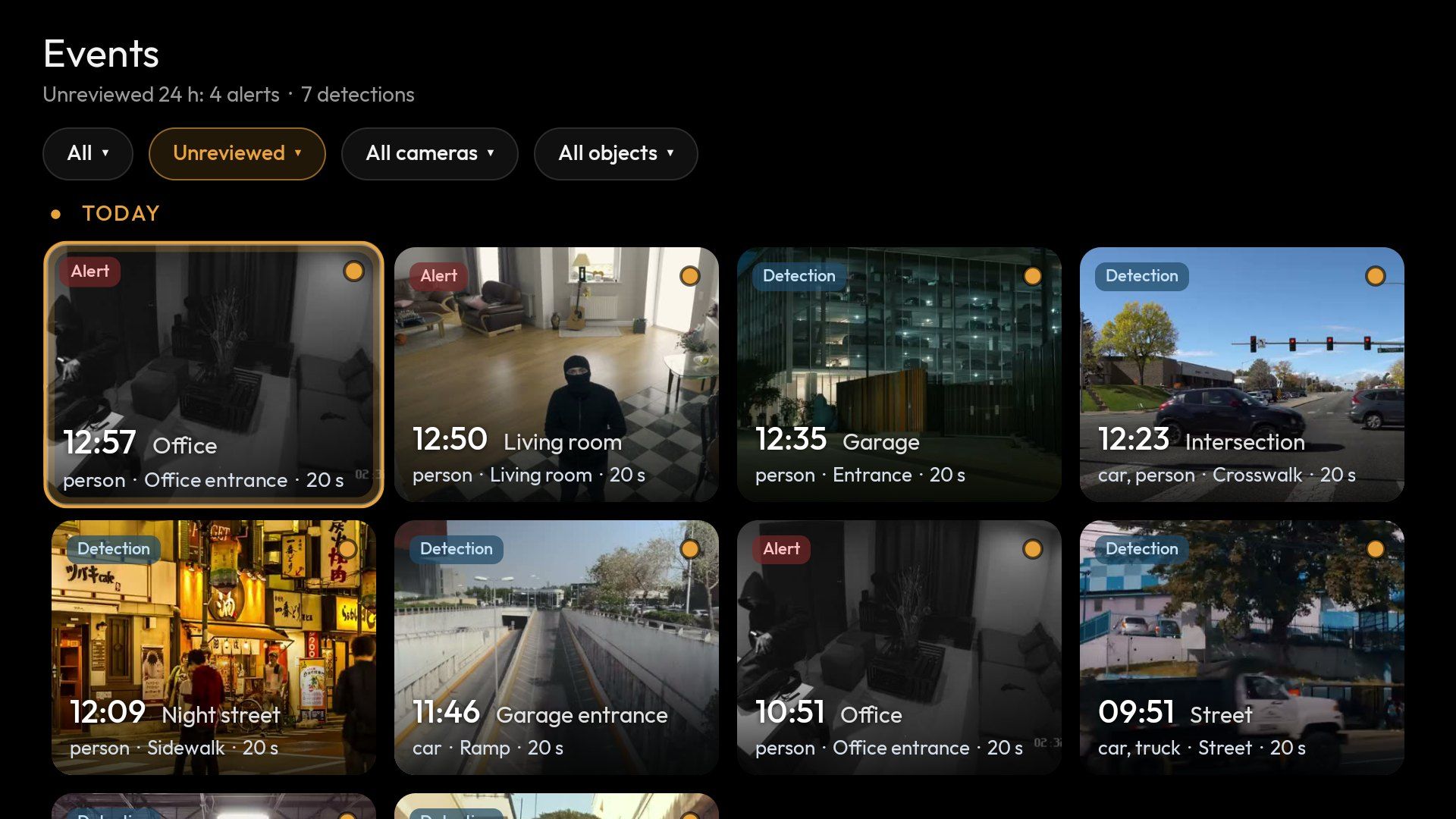
- Events with thumbnailsFrigateAlerts and detections by day and camera, with reviewed items marked.
- Unreviewed filterFrigateShow only the events you haven’t looked at yet; your choice is remembered.
- FiltersFrigateDrop-down lists: type, camera, object (person, vehicle, animal…) and zone.
- Event clipsFrigatePlay and scrub.
- Recordings by timeFrigateAn hour-by-hour view, or Timeline: the whole day as a strip with events, zoomable from 24 h down to 10 min.
- Jump to the next eventFrigateKeys 7 and 9 – previous and next, no scrubbing.
- 1× to 16×FrigateGapless playback across recording segments.
- Full archiveProThe Free edition shows events from the last 24 hours.
05
Alerts over live TV
When Frigate raises an alert, a camera window pops up over whatever is on – Netflix, live TV, YouTube. Press OK to go full screen.
- Choose the triggerProAlerts only, or every person too.
- Per-camera priorityProOff, normal or high.
- Quiet hoursProNo pop-ups during the hours you choose.
- Camera offlineProA warning when a camera stops sending video.
- Wake the screenProOn an alert or a doorbell ring.
- Auto-switch inside the appProAn event switches to that camera, then back to the one you were watching.
06
Modes: Day, Night, Away
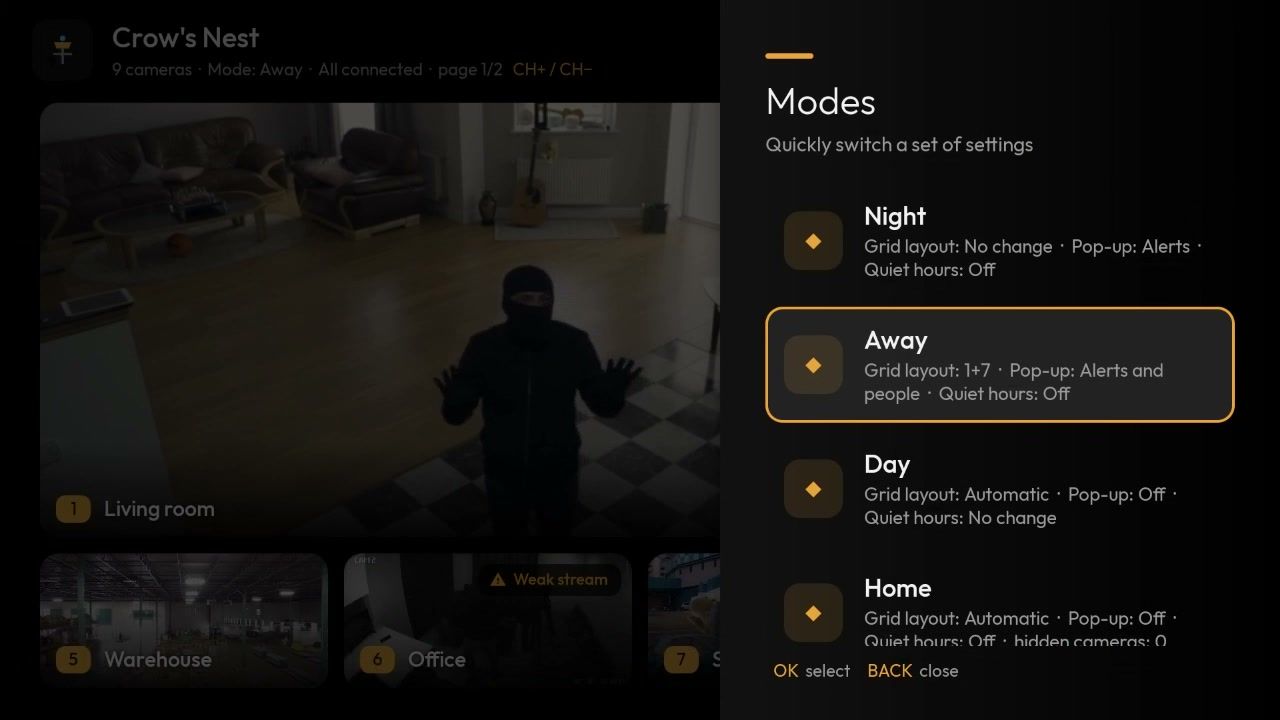
One key switches a whole set of settings. Prepare up to 4 modes and switch them from the remote, by the clock or from Home Assistant.
- Ready-made profilesProDay, Night and Away are already set up. “Advanced” saves the current state as a new mode.
- What a mode changesProGrid layout, pop-ups (off, alerts, or alerts and people) and quiet hours. “No change” leaves a setting alone. Advanced adds hidden cameras and alert priority per camera.
- By handProA button in the header opens the list of modes; the active mode’s name shows next to the camera count.
- By the clockProEach mode has a start time, for example Night from 23:00. Works even when the app is closed.
- From Home AssistantProThe alarm state or a selector (input_select) picks the mode. It changes only when the state changes.
07
Home Assistant: doorbell → camera on TV
The TV connects to Home Assistant on its own and reacts to your sensors – no fixed IP for the TV, no add-on in HA.
- Direct connectionProWebSocket API with a long-lived access token.
- RulesProDoorbell, intercom or any sensor → the chosen camera pops up over TV, with a title and sound.
- A button in the windowPro“Open gate”, “Unlock”: lock, switch, script, cover, button – right from the remote.
- Your choice of viewProPop-up, full screen or corner camera.
- From any automationProThe crowsnest_popup event opens a camera window with your title.
08
Corner camera
A small live camera that stays on top of your TV program, in any of the four corners. Watch the film and keep an eye on the driveway.
- Four cornersProPut it where it bothers you least.
- Closes by itselfProAfter 5–60 minutes, your choice.
- Launcher shortcutProA dedicated shortcut toggles the corner camera with one key.
09
Set up from your phone – no typing with the remote
A QR code on the TV opens a page on your phone, served by the app itself on your local network. It only works while the setup screen is open, with a one-time token.
- CamerasRTSP and ONVIF.
- Frigate and Home AssistantAddress, credentials, token, rules.
- LicenseActivate with your key (version from this site).
- Backup and support reportDownload to your phone, or restore from it.
10
Security and privacy
Everything stays on your network. The app connects straight to your cameras and servers – no cloud, no relay, no analytics, no tracking.
- PINLocks Settings and the cameras you choose.
- BackupsOn the device, a USB stick or your phone; move to another TV in a minute.
- EncryptedAES-256, with a password only you know. With a backup password set, camera passwords and the Home Assistant token are always included, so restoring on another TV brings everything back.
- Cloud copyYour own Google Drive or Dropbox – encrypted only; the app can see only its own files.
11
Look and demo mode
- 6 themesSix color themes, from dark Night to OLED-black Midnight.
- Designed for the remoteBig focus states, a clear hierarchy, everything a few keys away.
- 12 languagesEnglish, Serbian, Croatian, Bosnian, Slovenian, Spanish, Russian, Ukrainian, Portuguese, Hungarian, Bulgarian and Italian.
- Demo mode9 sample channels and sample events, with no cameras and no internet – try before you buy.
- Night
- Midnight (OLED)
- Ocean
- Forest
- Graphite
- Lavender
12
Maintenance and support
- Automatic updatesWith your confirmation, signature and SHA-256 checks; “What’s new” after every update.
- Checks and decoder testBuilt-in connection checks and a test of how many streams your TV can decode.
- System statusFrigate CPU, detector and disks, go2rtc streams and this device.
- Support reportOne click, no passwords included.
13
Coming soon
Planned, but not ready yet. When something ships, you’ll see it in the changelog.
- Google PlayCrow’s Nest is coming to Google Play, with Pro as an in-app purchase. Until then, it installs as an APK from this site.
- Kiosk modeFor Business: a TV that shows cameras and nothing else.
- PTZ without FrigateControl moving cameras directly over ONVIF.
- Plates and facesShow AI licence-plate and face recognition.
- Two-way audioTalk through a camera or intercom.
Try it on your own TV.
Free for up to 4 cameras – and demo mode works with no cameras at all.